Selected WorkProject 11CRM Automation
Asana CRMAutomationwith Zapier.
Asana task stages drive the sales follow-up: lead folders, subtasks and timed emails, stage by stage.
A Zap triggers on Asana task updates and routes each lead by stage — Ready to Start, No Response, Quoted, Approved, Paid and Close — creating Drive folders and subtasks, sending timed follow-ups and the approved file.
- Zapier
- Asana
- Gmail
- Google Drive
11Project
of 15
 Open the full Asana CRM Automation with Zapier (opens in a new tab)
- CRM Automation
- Zapier workflow
- Asana task stage to follow-up
- Workflow built in Zapier
01The Brief
Every stage has its follow-up.
Leads tracked as Asana tasks move through Ready to Start, No Response, Quoted, Approved, and Paid and Close; each stage needs its own folder, task or email.
Let each Asana task stage drive its own follow-up, with timed emails where a lead goes quiet.
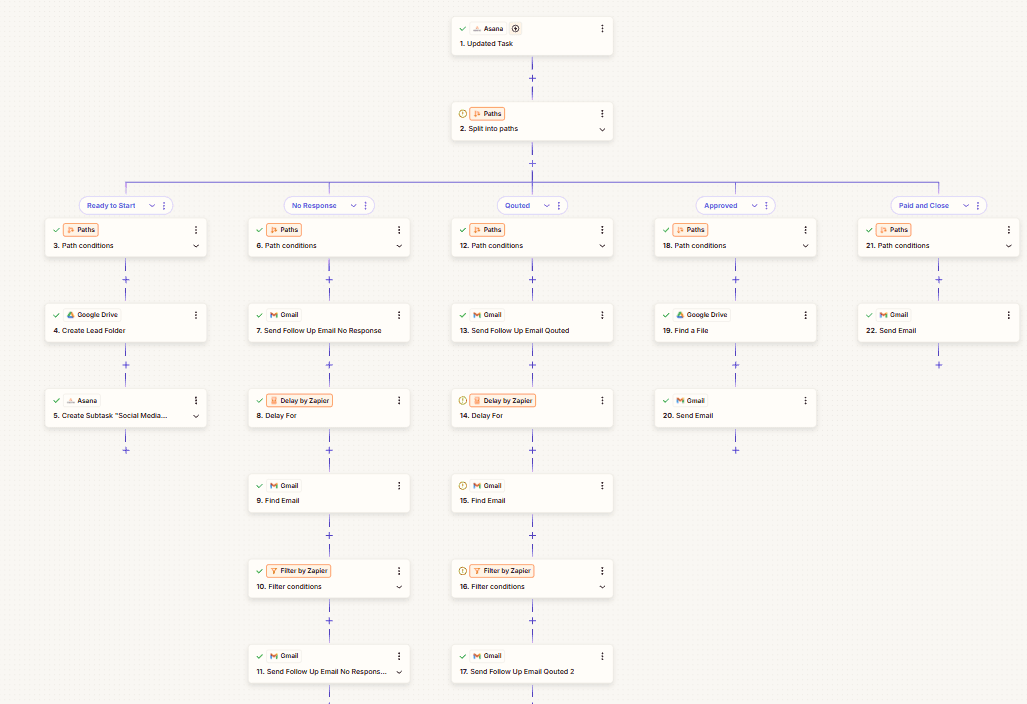
Asana CRM Automation with Zapier: the full workflow capture. Select it to open full size.
02The Workflow
One trigger, five stage paths.
A Zap triggers on Asana task updates and routes each lead by stage — Ready to Start, No Response, Quoted, Approved, Paid and Close — creating Drive folders and subtasks, sending timed follow-ups and the approved file.
- An updated task in Asana starts the Zap; its stage selects the path.
- None: rules and timing only
- Drive, Asana and Gmail
03How It Works
One trigger, then the stage’s path.
Each stage, read straight off the workflow’s own node names.
Trigger
Asana: updated task · Split into paths by stage
Ready to Start
Create lead folder (Google Drive) · Create Asana subtask
No Response · Quoted
Send follow-up email · Delay · Find email, filter, send second follow-up
Approved · Paid and Close
Find the file in Google Drive · Send email
04Architecture
The workflow, start to finish.
The same steps, arranged as they run: in sequence, or split into parallel paths.
01Trigger
- TriggerAsana: updated task
- RulesSplit into paths by stage
02Stage paths
- PathReady to Start
- PathsNo Response · Quoted
- PathsApproved · Paid and Close
03Output
- Google Drive · AsanaLead folder and Asana subtask
- GmailDelay, filter, then follow-up emails
- Google Drive · GmailApproved file and closing email
- Workflow step
One Asana trigger, split by stage into parallel paths; each path has its own output, with delays and filters on the follow-up paths. No AI step.
05Validation & Controls
Rules and timing — no AI.
The task’s stage decides the path; delays and filters decide when to send.
- TriggerBuilt
- Ready to StartBuilt
- No Response · QuotedBuilt
- Approved · Paid and CloseBuilt
- Asana task update: An updated task in Asana starts the Zap; its stage selects the path.
- Stage paths: Each of the five paths runs its own steps: folder and subtask creation, follow-ups, or closing emails.
- Delays and filters: Follow-up paths wait, find the latest email and filter before sending a second follow-up.
- Drive, Asana and Gmail: A Drive lead folder, an Asana subtask, timed follow-up emails, and the approved file with the closing email.
06The Stack
Each tool has a defined job in the workflow.
Roles over logos. Only the tools in the workflow are listed.
Zapier
Runs the Zap and its paths
Asana
Task updates in, subtasks out
Gmail
Follow-up and closing emails
Google Drive
Lead folders and approved files
07The Outcome
What the workflow does.
Asana task stages drive the sales follow-up: lead folders, subtasks and timed emails, stage by stage.
Triggers on Asana task updates and routes each lead through five paths — Ready to Start, No Response, Quoted, Approved, Paid and Close — creating a Google Drive lead folder and Asana subtask, sending timed follow-up emails, and sending the approved file and closing email.
- Workflow Design
- Systems Integration
- An updated task in Asana starts the Zap; its stage selects the path.
- Each of the five paths runs its own steps: folder and subtask creation, follow-ups, or closing emails.
- Follow-up paths wait, find the latest email and filter before sending a second follow-up.
- A Drive lead folder, an Asana subtask, timed follow-up emails, and the approved file with the closing email.
Contact
Have a workflow, dashboard or CRM that needs fixing? Let’s talk.
Available for new projects
Tell me about the operation, the systems involved and where the work gets stuck. A short call is usually enough to see whether I can help.